

MTUのサイズの見つけ方 How to find out MTU Size
The listed steps below for any users you may have with printing slowness and see if this resolves the issue.
- Right Click on the printer and go into the printer properties. Click the Advanced Tab at the top and identify the printer driver in use
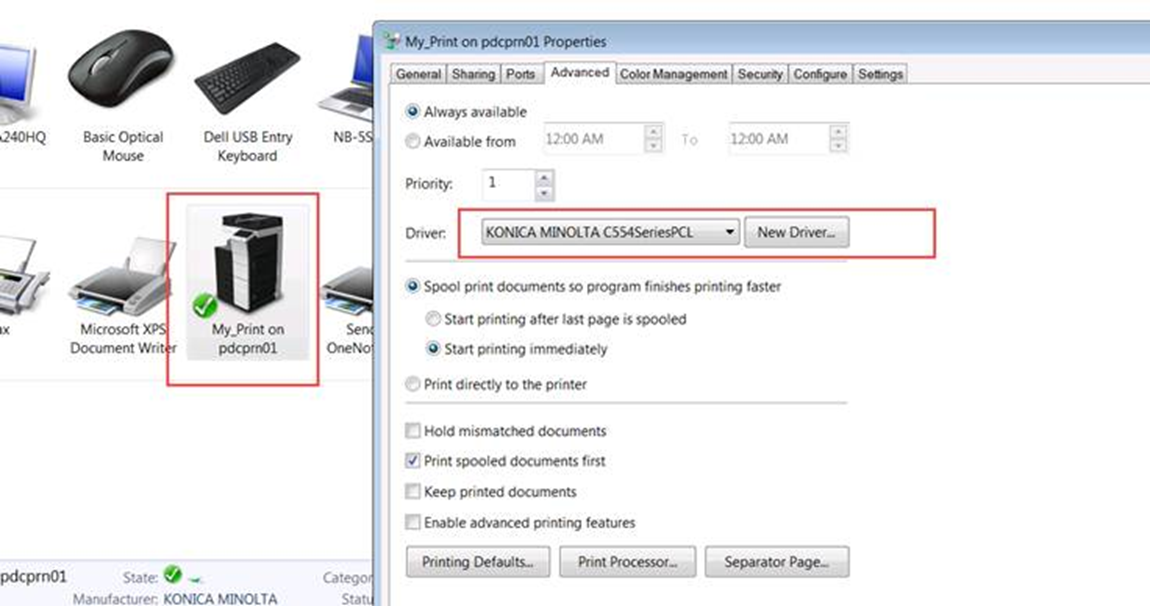
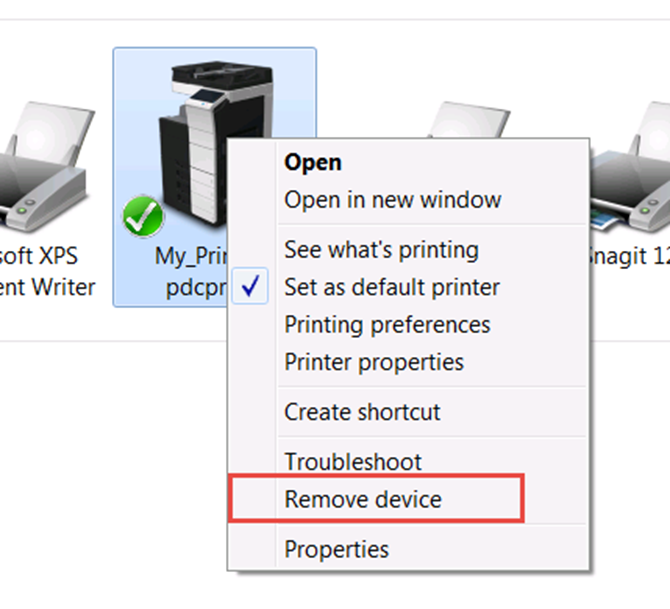
- After you have identified and noted down the driver, remove the users current print queue.
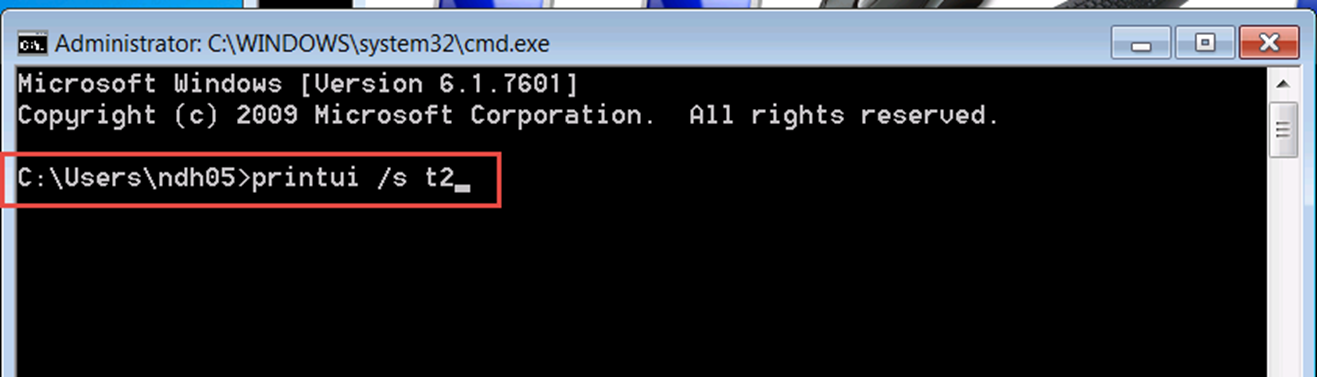
- Once the print queue for My Print has been removed we need to remove the driver and all associated packages. Open CMD.EXE as Administrator and then type the following command “PRINTUI /s /t2”
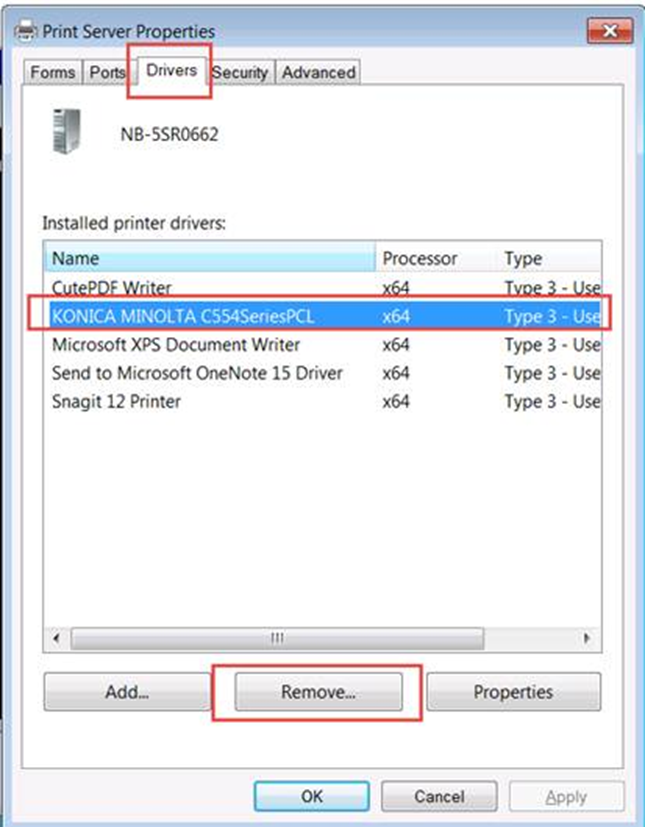
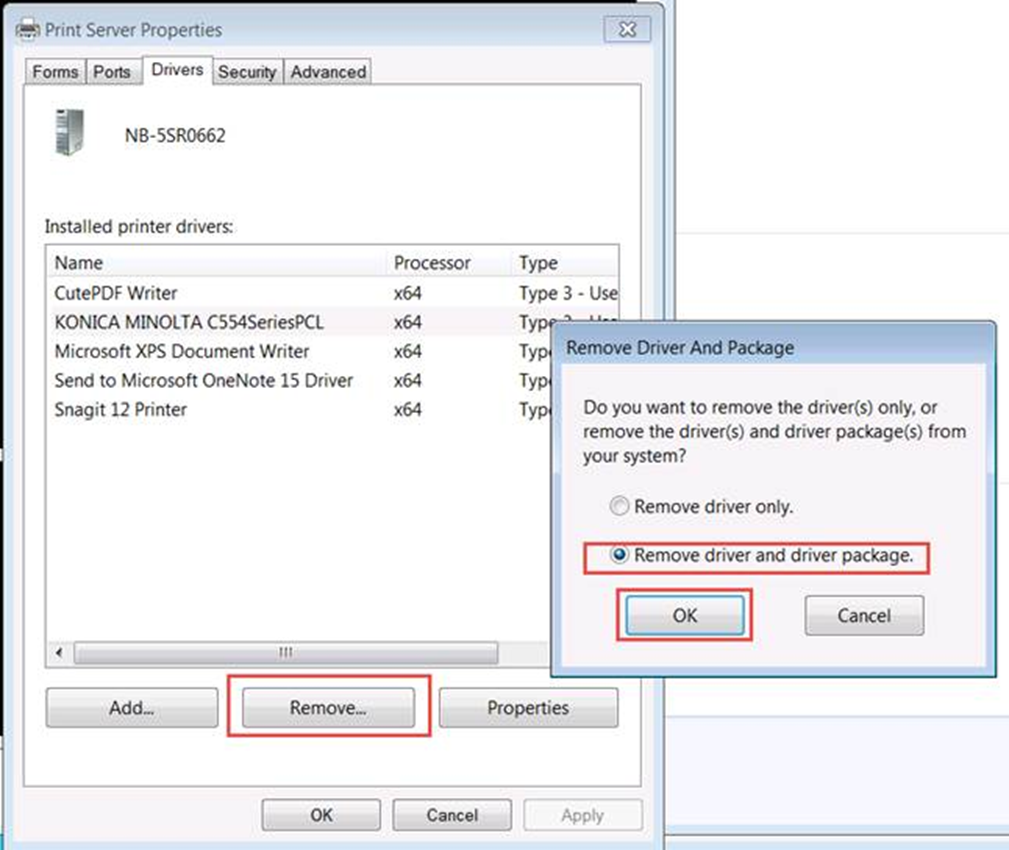
- This will open up the Print Server Properties window. Click on the drivers tab at the top of the window, select the driver you want to remove and then click the remove button.
- After selecting Remove, you are presented with a pop up window. Select Remove driver and driver package. This will completely remove all the driver information from the local machine
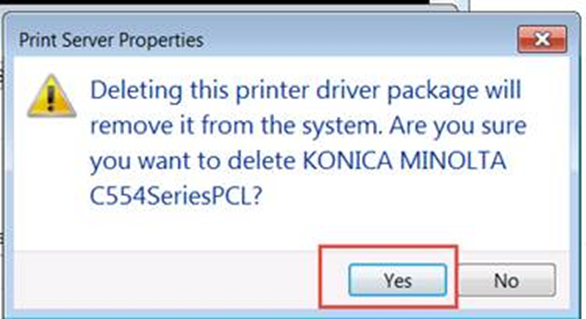
- Select yes to the warning message about deleting the driver
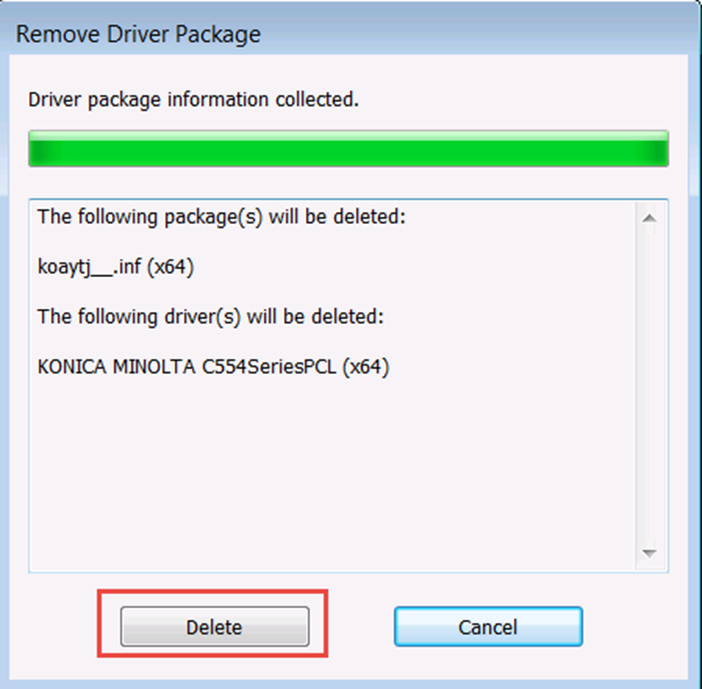
- Select Delete to remove the Driver Packages as well
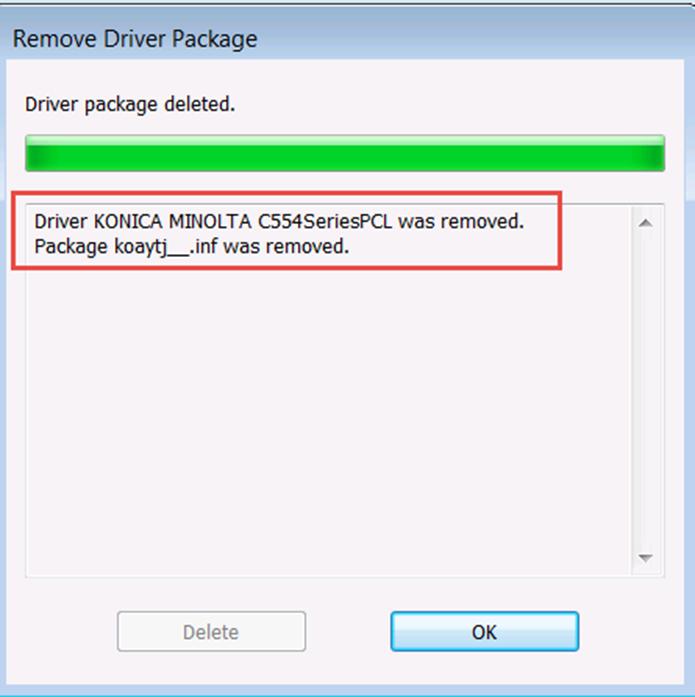
- It will then remove the printer driver, packages and associated .inf files
- Reboot the PC or server.
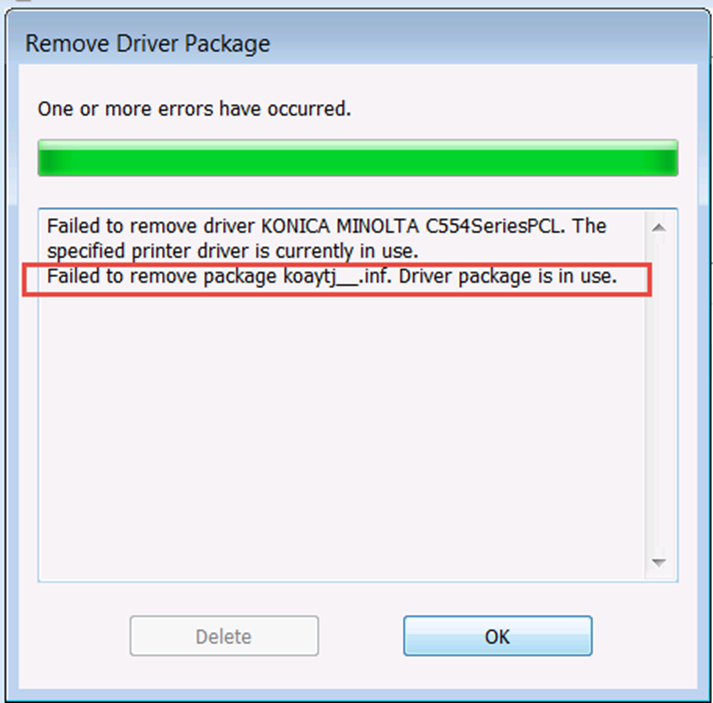
##NOTE 1: If for some reason you try to delete the driver before deleting the print queue, or the printer properties tab is still open you will receive an error message as per below. Delete the printer and close the tabs and try again it should work.
##NOTE 2: If you installed drivers to use “Add Print” method and delete drivers,
You need to implement following procedure to delete Drivers.
- Delete print jobs.
- Delete print queue
- Delete Driver package.
- Reboot PC.
- To install driver to use “Add Print” method.
##NOTE 3: If you installed drivers to use “Add Print” method and delete drivers,
You also have below procedure.
- To use Setup.exe or Setup64.exe and delete drivers.